
Managing employee time and attendance is effortless with FirePAY Restaurant POS. The built-in Clock In/Out feature allows restaurant owners and managers to accurately track staff hours, streamline payroll, and maintain labor compliance — all from the POS terminal.
Follow this simple step-by-step guide to learn how employees can clock in and out of the FirePAY system.
Step 1: Access the Clock In/Out Screen
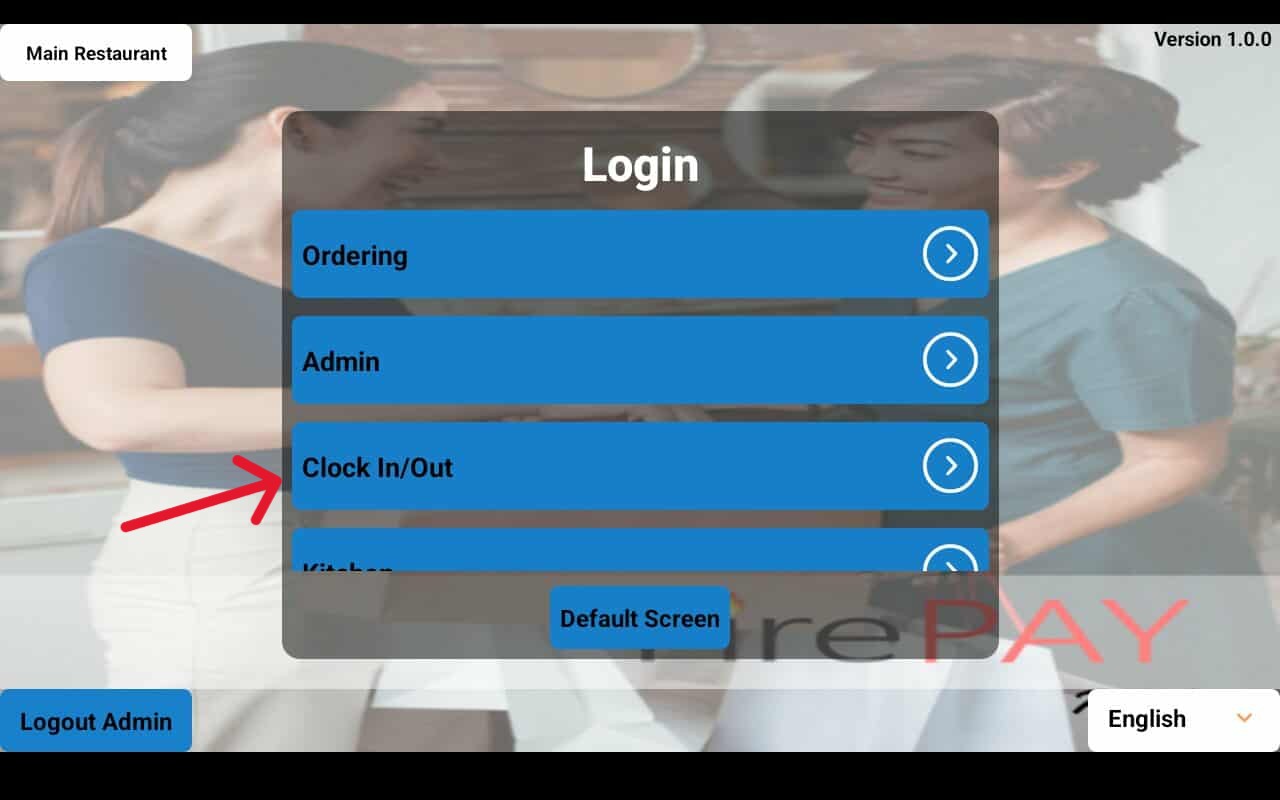
From the FirePAY POS Home Screen, select
➡️ Clock In/Out
This feature is accessible directly from the main dashboard, ensuring quick and easy access for all team members at the start or end of their shifts.
Step 2: Choose the Staff Member
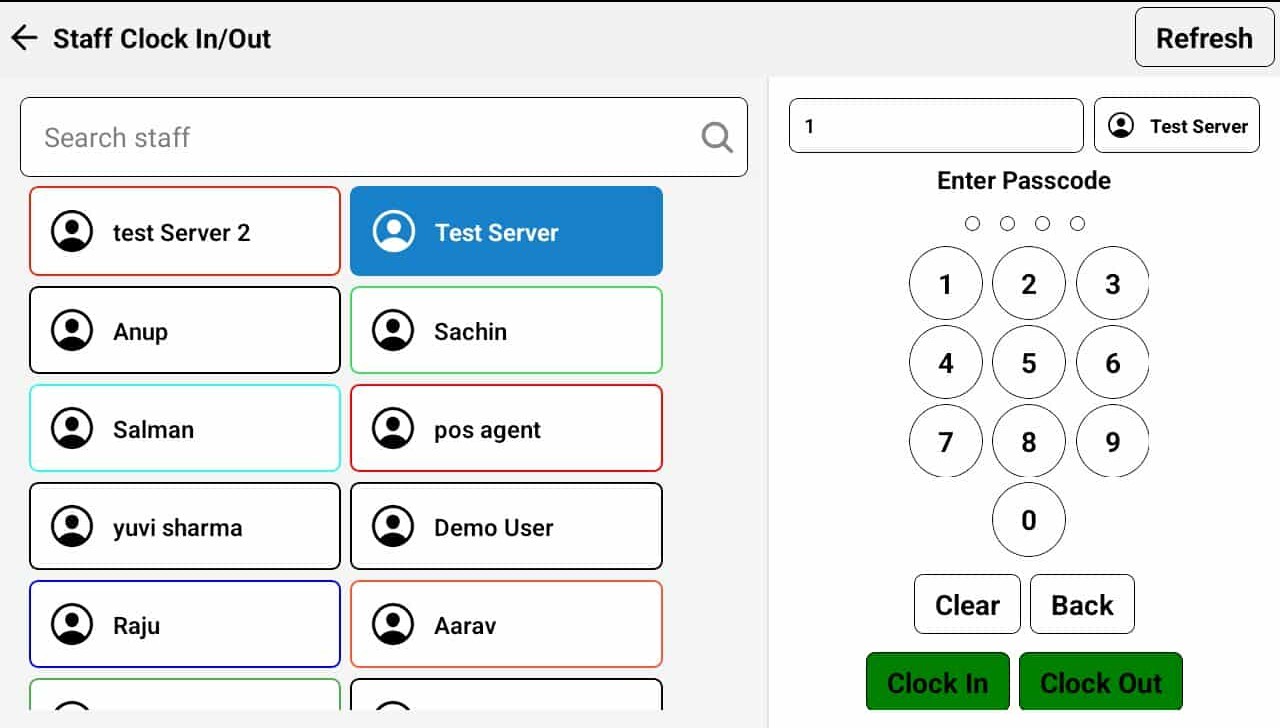
A list of active employees will appear.
Select the staff member’s name who is clocking in or out.
This step ensures accurate tracking of individual work hours across multiple shifts and positions.
Step 3: Enter Passcode
Each employee is assigned a unique passcode for secure access.
Enter your code to confirm your identity.
This helps prevent unauthorized access and ensures that time records are tied to the correct employee profile.
Step 4: Clock In or Clock Out
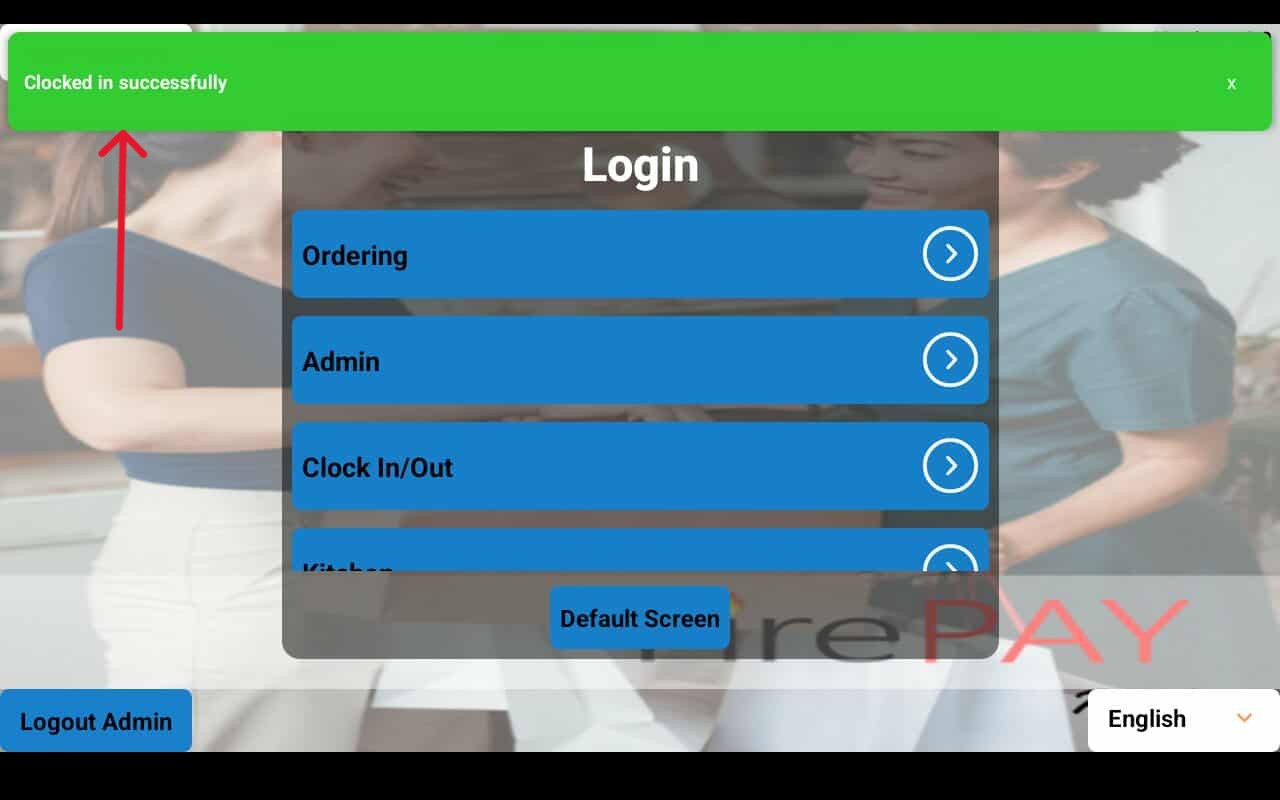
Once verified, tap Clock In to start your shift or Clock Out to end it.
The system automatically records the exact time, storing it in the FirePAY POS timekeeping records for accurate payroll reporting and attendance management.
Why Use FirePAY POS for Employee Time Tracking
-
Integrated Timekeeping: Eliminate the need for external clock-in systems.
-
Accurate Payroll Reports: Export precise time data for payroll and HR processing.
-
Secure Access: Passcode protection for every employee.
-
Shift Management: Track breaks, shift changes, and overtime with ease.
-
Multi-Location Support: Manage teams across multiple restaurant sites seamlessly.
With FirePAY Restaurant POS, your team can clock in and out with just a few taps — ensuring accuracy, accountability, and efficiency every day.