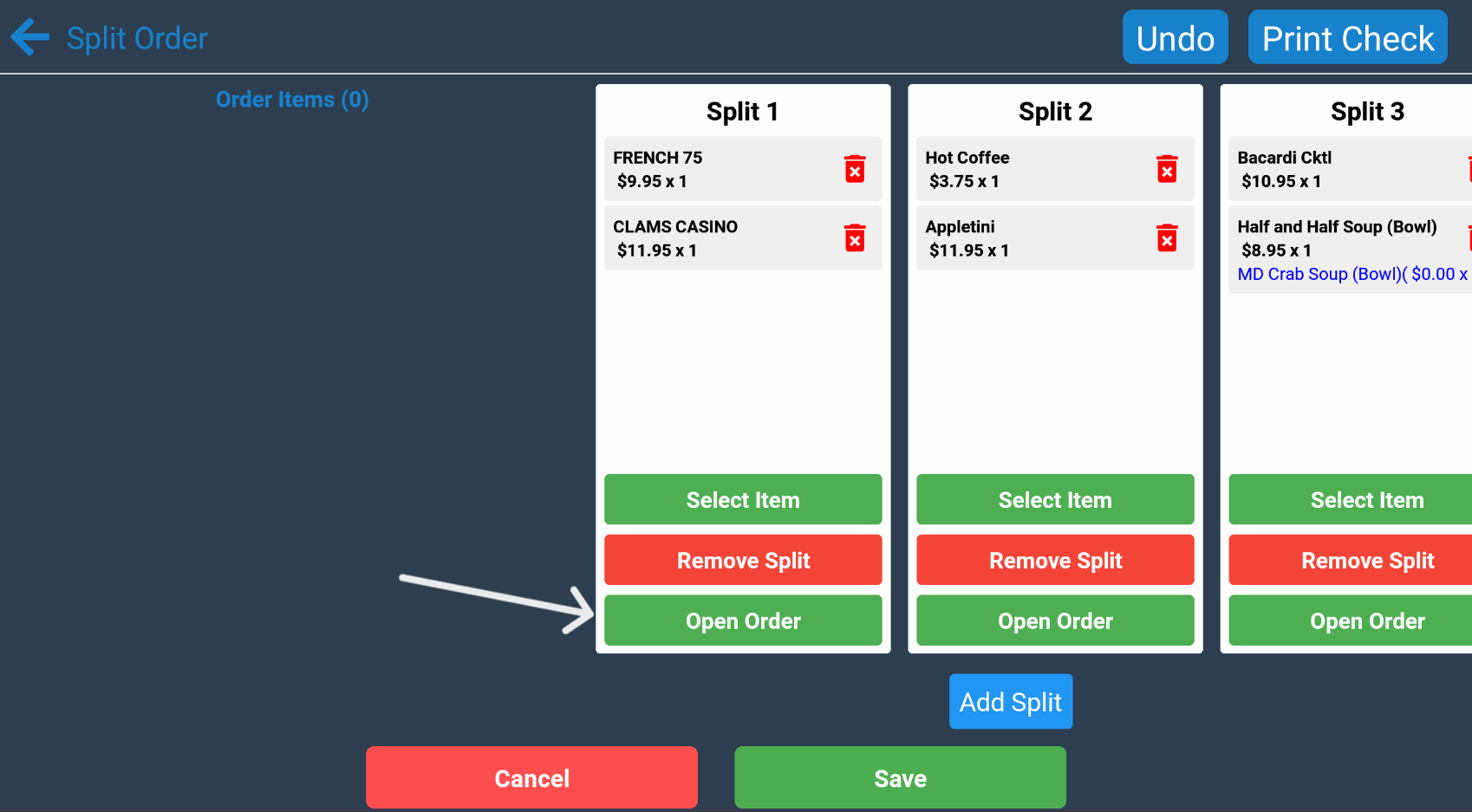
The FirePAY Restaurant POS system makes it simple to split checks between guests — whether you’re managing a dine-in table, bar tab, or group order. This feature helps servers handle shared payments smoothly, keeping transactions organized and accurate.
Follow this guide to learn how to split a check, manage separate payments, and merge items when needed.
Step-by-Step: How to Split a Check
Step 1: Recall the Order
From the FirePAY POS Home Screen, select
➡️ Recall Order
This opens your list of active or recent orders.
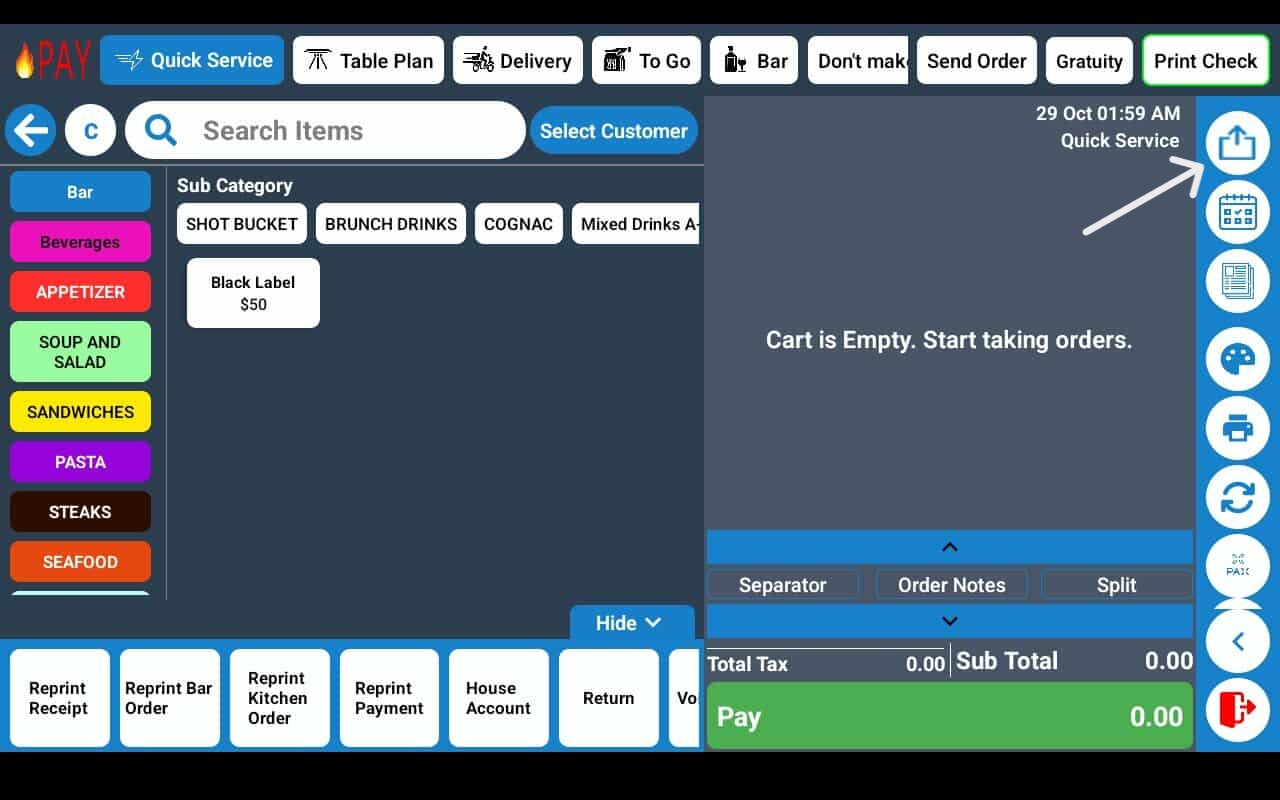
Step 2: Select “Split”
On the order screen, tap
➡️ Split
(Located on the bottom right of the screen, under the invoice items.)
This opens the split management menu.
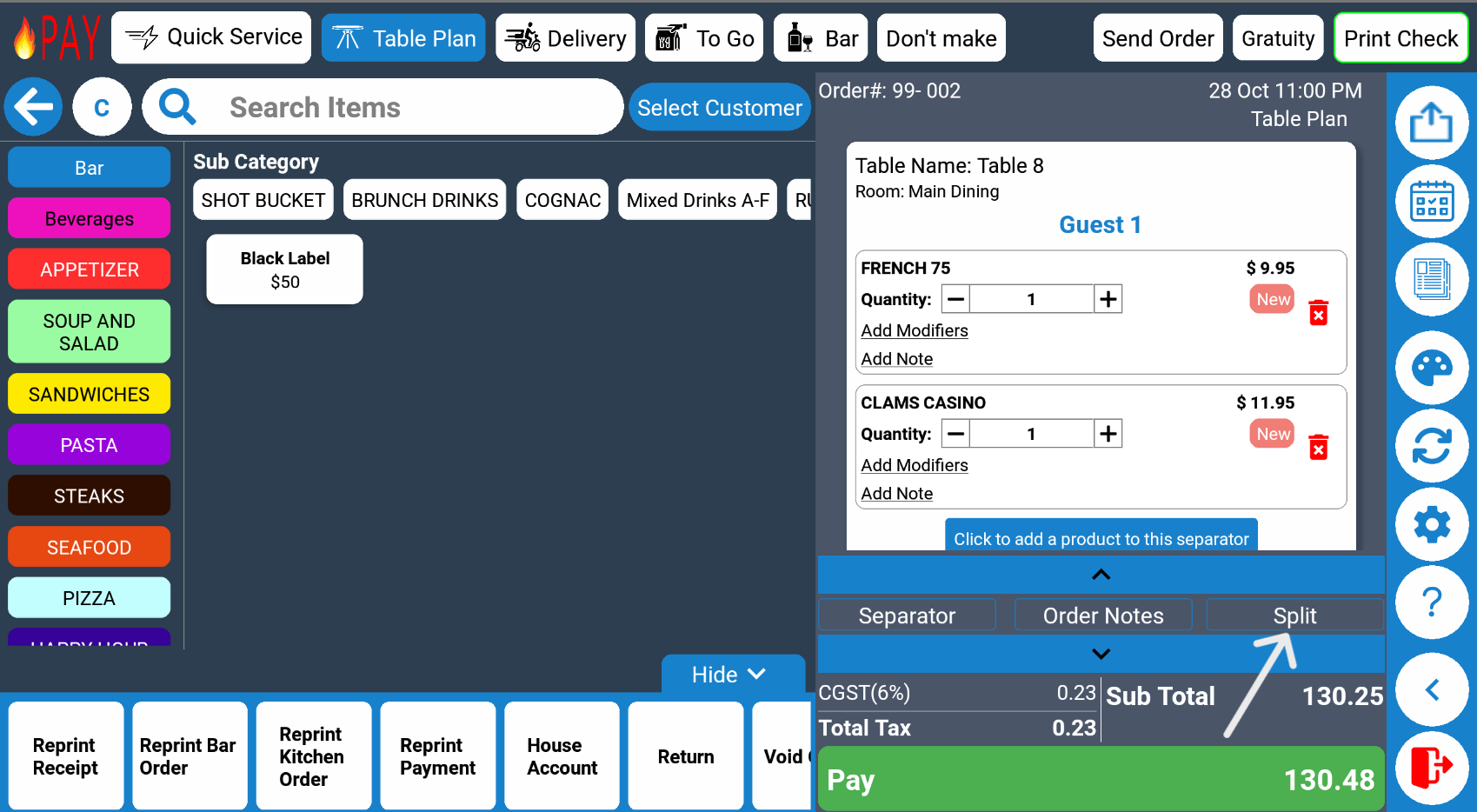
Step 3: Select Order Items
Tap the order items you want to move onto a new check.
You can split food, bar items, or any other ticketed products between guests.
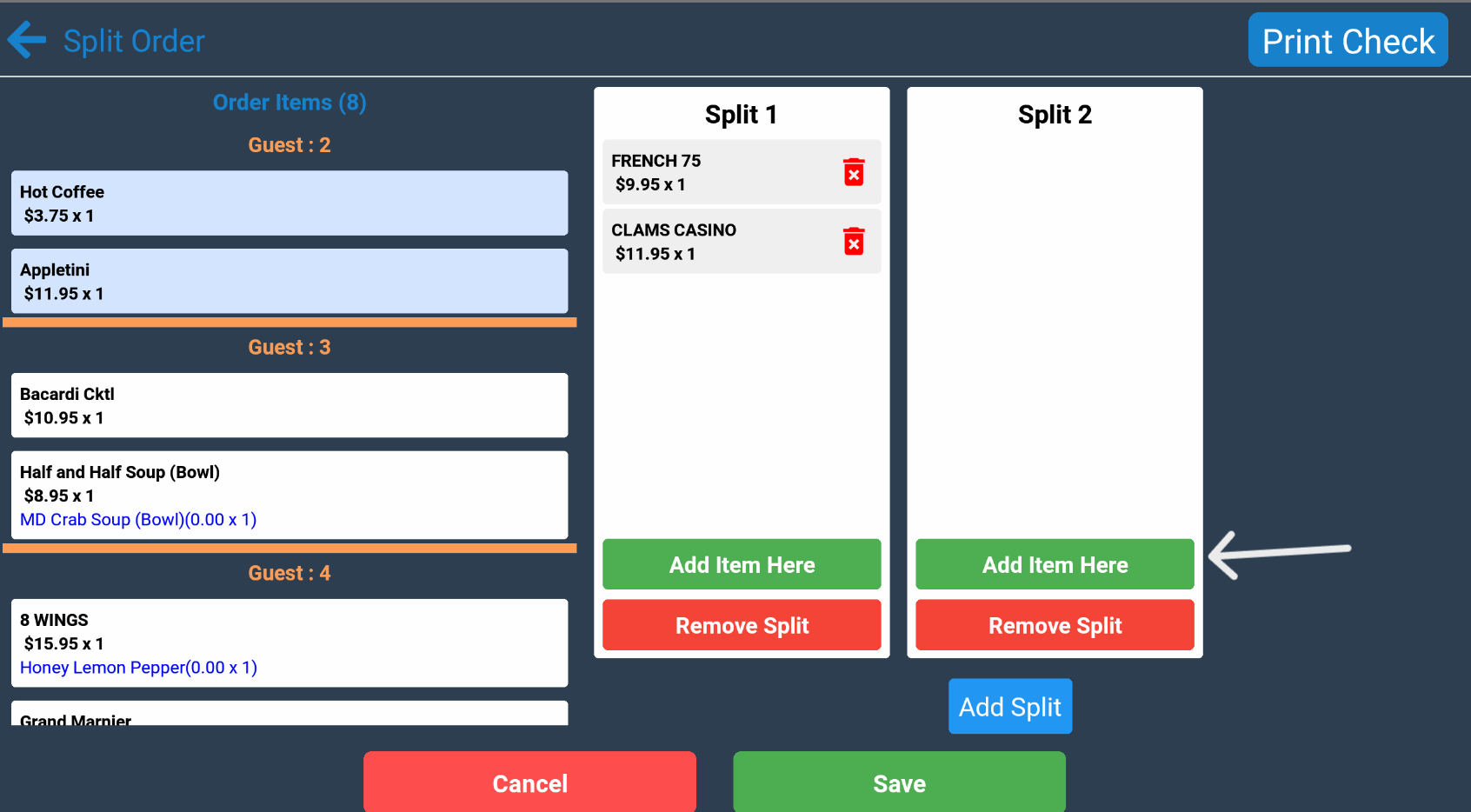
Step 4: Add Items to a Split
Select
Add Item Here
to place the chosen items onto a new check (Split 1, Split 2, etc.).
Each split will function as an individual ticket, allowing you to process payments separately.
After a Check Has Been Split
Once the check is split, FirePAY POS automatically manages the data between all subtickets. Review these important notes for accurate processing:
1. The Main Check Is for Records Only
After splitting, the main check cannot be edited or added to. It remains as a record of the original order.
2. Always Save Before Printing
Always save the split before printing receipts to ensure all changes are recorded.
3. View the Entire Split Again
To see all subtickets together, open the main order in the queue or tap the table number on the floor plan.
-
Add to Each Split Individually
You can continue to add items to each split from the recall queue if guests order additional items. -
Merge Splits Back Together (Single Check)
To recombine checks, move all items to Split 1. You can then add new items or process a single payment from that split.