
Refunds are an essential part of maintaining great customer service and accurate accounting in your restaurant operations. With FirePAY Restaurant POS, processing a refund is fast, secure, and fully traceable — ensuring that both customers and management have a clear record of each transaction.
This guide walks you through the refund process step by step.
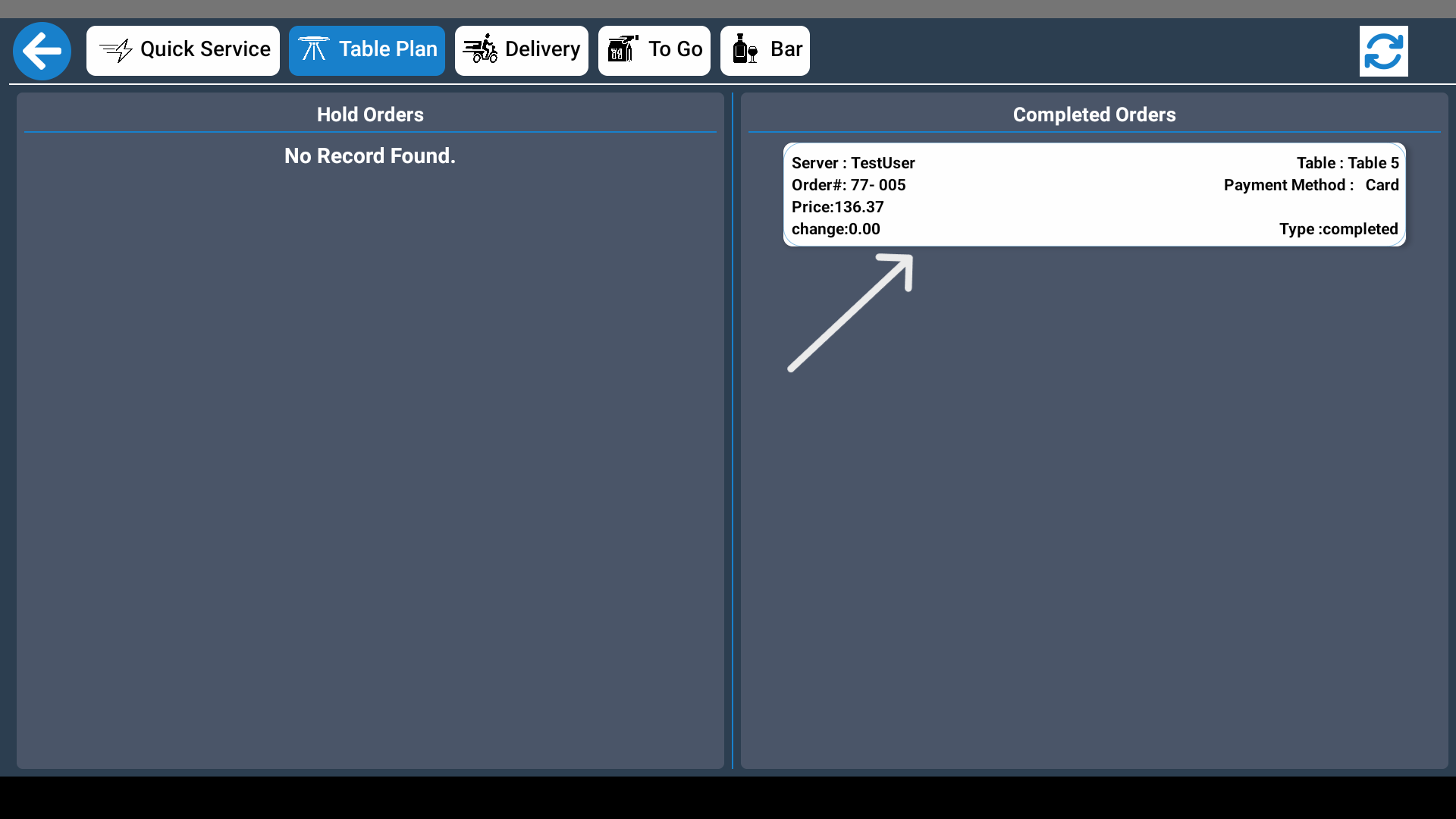
Step 1: Select the Order
From the FirePAY POS Home Screen, locate the transaction you wish to refund.
You can do this by searching through recent orders or using the Recall Order function to find the correct sale.
Once you’ve found the order, select it to open the transaction details.
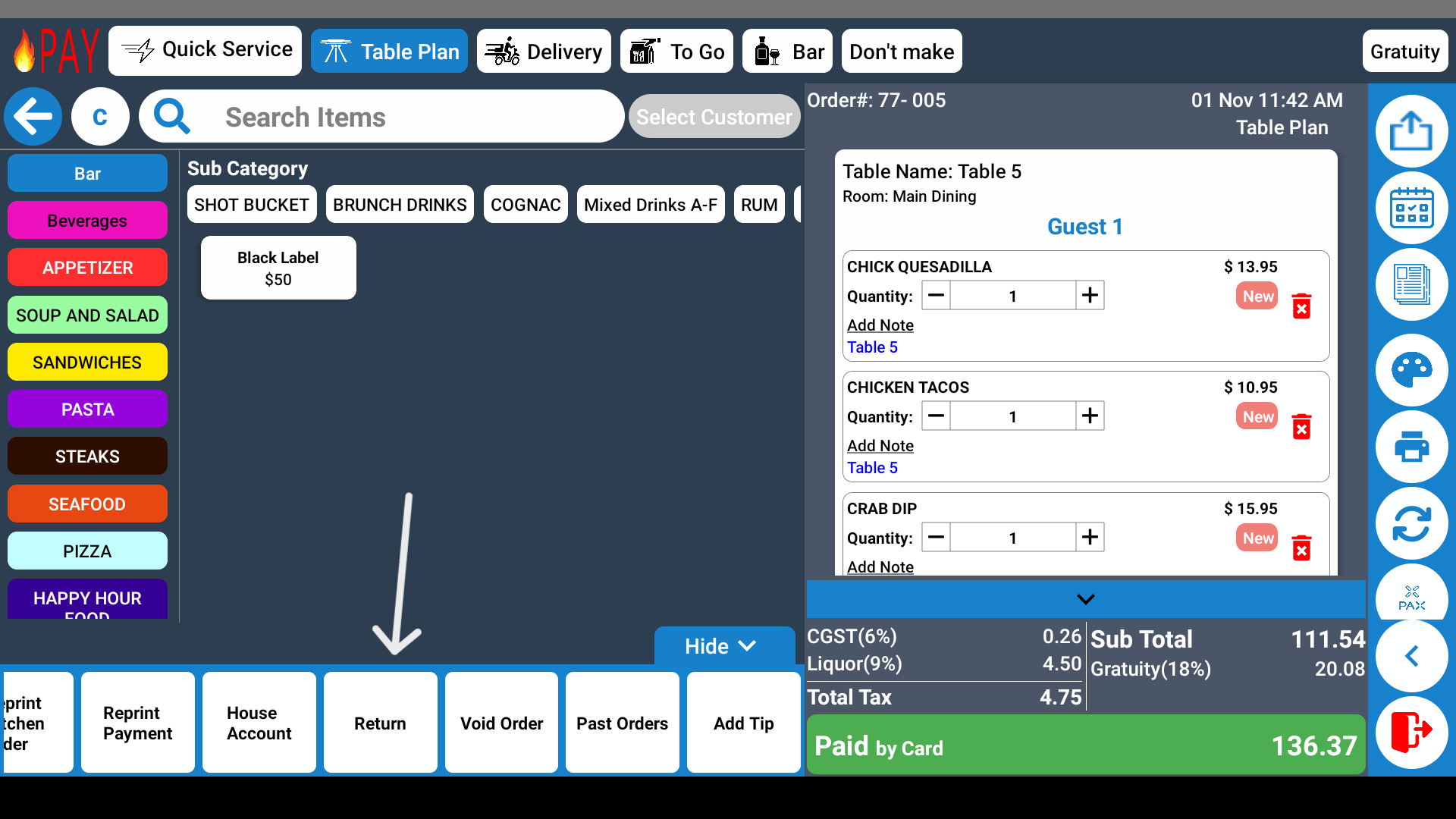
Step 2: Press “Return”
On the order screen, tap
➡️ Return
This activates the refund process for the selected transaction.
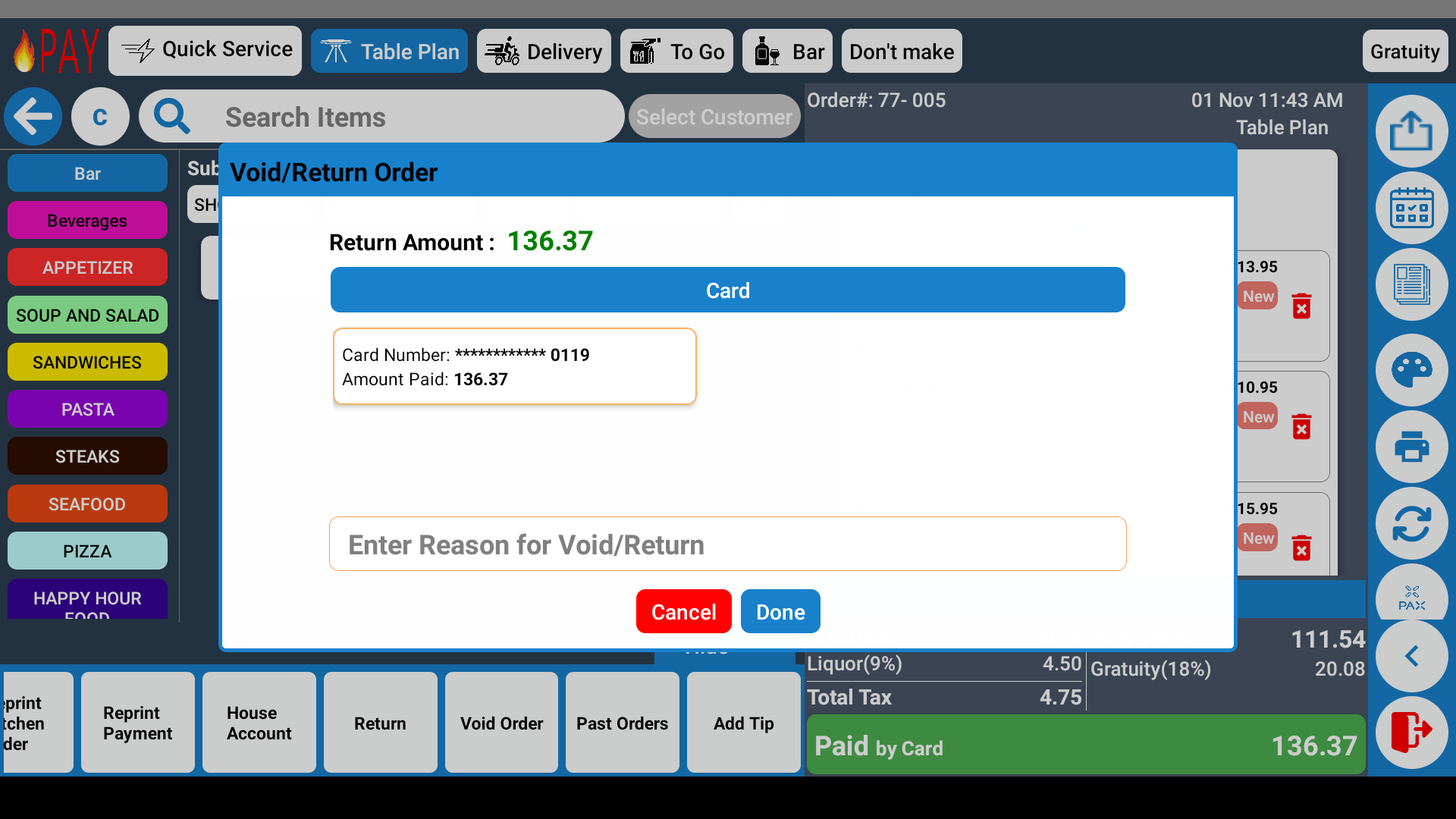
Step 3: Choose the Original Payment Method
Select the payment method that was originally used for the transaction.
If the customer paid with a credit or debit card, the same card must be present to complete the refund.
This step ensures secure and accurate transaction reversals while complying with processor requirements.
Tip: For cash or gift certificate refunds, always verify the amount and receipt before completing the transaction.
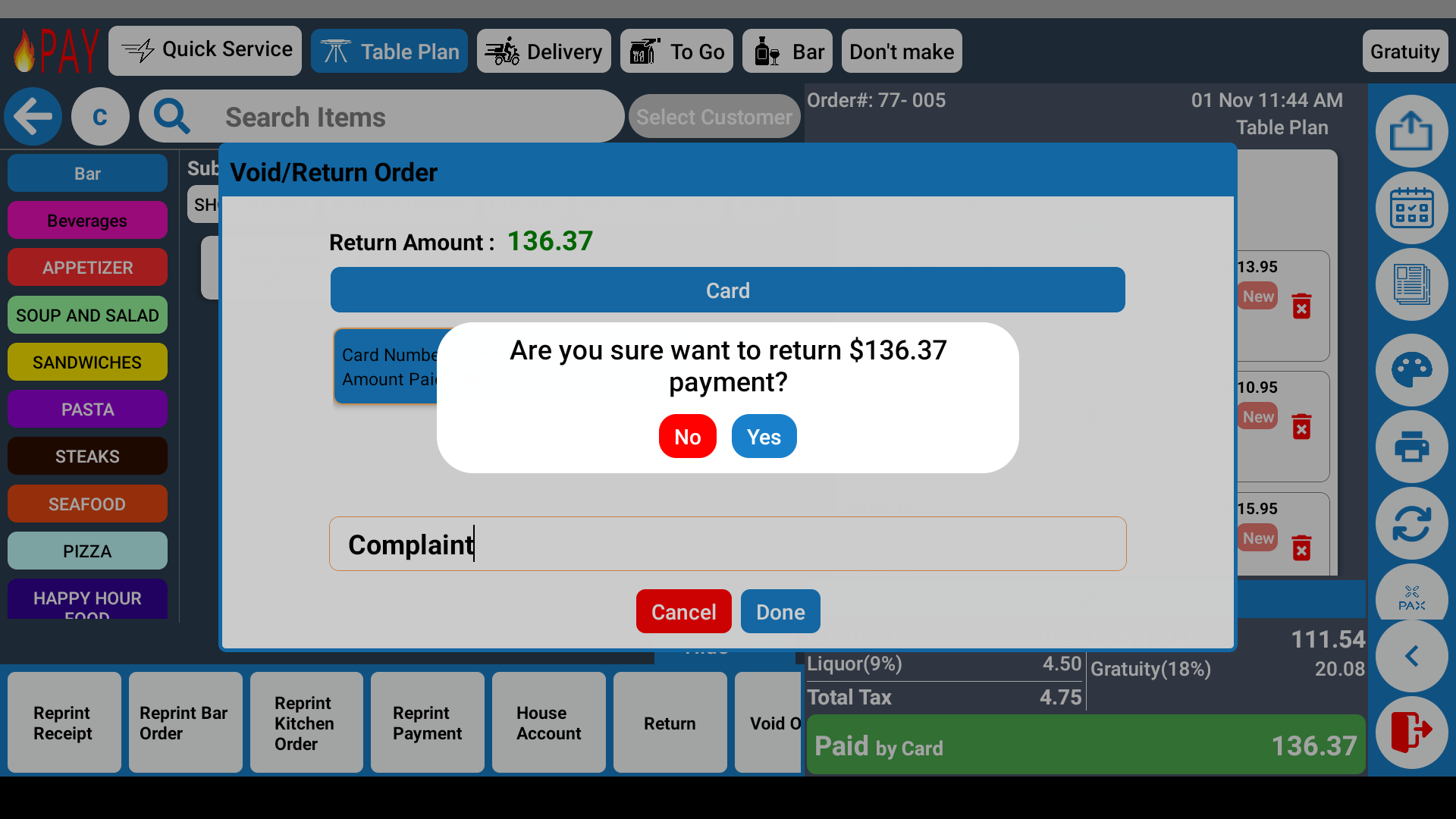
Step 4: Enter the Reason for Return
The system will prompt you to enter a reason for the refund — such as:
-
Wrong order sent
-
Customer dissatisfaction
-
Duplicate charge
-
Order canceled
Once entered, select Done to finalize the refund process.
Benefits of Using FirePAY POS for Refunds
-
Fast & Secure Refunds: Complete returns in just a few steps.
-
Accurate Records: Refund data is automatically logged in reports.
-
PCI-Compliant Transactions: Protects customer payment information.
-
Flexible Payment Options: Supports refunds for card, cash, or gift certificate sales.
-
Manager Authorization: Optional approval settings for higher security.
With FirePAY Restaurant POS, processing refunds is efficient, secure, and fully integrated into your daily operations — helping you maintain customer trust and streamlined financial control.